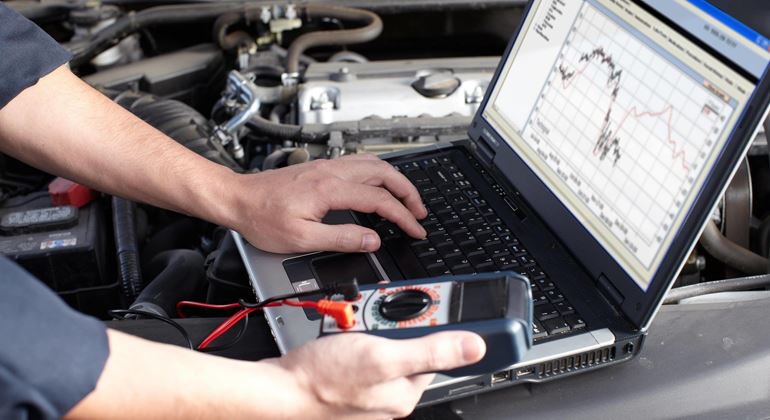
When clients leave a computer with us, they often wonder what actually happens between handing it over and receiving a call explaining what we found. The short answer is: a lot of structured testing and some careful reasoning about what the results mean. This article walks through that process in detail.
Understanding how diagnostics work helps clients make better decisions — about whether to pursue a repair, how to evaluate the findings they're given, and what to do if they feel they're being told more than the data actually supports.
Why Diagnostics Matter Before Repair
The temptation in hardware repair is to jump to the most probable cause and start replacing parts. This approach is faster in the short term. It's also unreliable. Computer hardware faults are frequently ambiguous — the same symptom (blue screen, for example) can be caused by a failing RAM module, a corrupted driver, a dying hard drive, a power delivery issue on the motherboard, or a processor running at temperatures that trigger protective shutdown. Replacing RAM when the actual problem is a failing drive doesn't fix anything; it just adds cost to a machine that's still broken.
Methodical diagnostics take longer upfront but produce more accurate conclusions. They also produce a written record of the findings — useful if the same fault recurs, if a second opinion is needed, or if the repair involves a warranty claim.
Stage One: Intake and History
The diagnostic process starts before we touch the hardware. We ask for a detailed description of the problem: when it started, whether it happened suddenly or gradually, what circumstances trigger it (always? only under load? only after extended use?), what's changed recently (new software, new hardware, a drop or spill), and what's already been tried.
This history matters more than most clients expect. An intermittent fault that only appears after the machine has been running for 45 minutes points toward a thermal or electrolytic capacitor issue. A blue screen that only occurs when accessing a specific external drive is almost certainly storage-related, not a general system fault. A problem that started immediately after an OS update is more likely software or driver-related than hardware.
We also note the machine's age, whether it's been serviced before, and any previous repair work. A laptop that was recently worked on by another service and is now exhibiting new faults warrants a different initial investigation than one that's been untouched for three years.
Stage Two: Physical Inspection
Before running any software tests, we do a visual and physical inspection. On a laptop, this includes checking the chassis for cracks or damage (particularly around hinges), the ports for physical wear or debris, the display for pressure damage, and — where accessible without full disassembly — any visible internal condition through vents or panels.
We also listen to the machine during boot and operation. Fan noise characteristics, drive activity sounds, and any unusual electrical sounds can be informative. A clicking hard drive is a classic indicator of mechanical failure. A fan that makes a rhythmic grinding sound as it spins up has a failing bearing. These aren't diagnostically conclusive, but they direct attention toward the right area.
For desktops, physical inspection includes checking internal components for visible damage: blown capacitors on the motherboard, burn marks on the PSU or power connectors, bent CPU socket pins, incorrectly seated RAM or GPU, and cable management issues that could be restricting airflow or creating intermittent connections.
Stage Three: BIOS and POST Behaviour
The Power-On Self-Test (POST) is the sequence a computer runs during startup to verify that essential hardware is present and responding. For machines with boot or startup problems, POST behaviour is one of the most informative early diagnostics.
Many motherboards produce audible beep codes during POST failure — specific patterns of beeps that correspond to particular fault types (memory not detected, no video output, CPU fault, etc.). Where beep codes aren't available, we observe whether the machine reaches the BIOS/UEFI screen, what hardware it reports detecting, and whether any errors are flagged.
A machine that won't POST at all narrows the probable causes significantly: power supply, CPU, RAM, or motherboard. A machine that POSTs but won't load the operating system points toward storage or software. A machine that boots normally but crashes during use has passed the most fundamental hardware checks and the fault is more subtle.
Stage Four: Software Diagnostics
For machines that reach the operating system (or that we can test from a diagnostic USB environment), we run targeted tests against the suspected components.
Memory Testing
MemTest86 is the standard tool for RAM diagnostics. It runs from a bootable USB drive, operating outside the OS, and performs multiple test passes covering different error patterns. A single error during MemTest86 is significant — RAM errors that appear under controlled testing are almost always real hardware faults. We run at least two full passes before drawing conclusions, as some faults only appear under sustained thermal load.
Storage Diagnostics
S.M.A.R.T. data from HDDs and SSDs gives us a first-pass health picture. We use tools like CrystalDiskInfo to read all reported attributes and identify any that are in warning or failing state. We pay particular attention to reallocated sectors, pending sector counts, and read error rates.
Beyond S.M.A.R.T., we run a surface scan on suspicious drives — a test that reads every sector and reports on read errors, slow sectors, and unreadable areas. A drive with a small number of slow sectors but no unreadable areas is degraded but often still serviceable with close monitoring. A drive with multiple unreadable sectors or a rapidly climbing reallocation count is approaching the point of failure and should be replaced and backed up promptly.
Thermal Monitoring
For suspected overheating, we run a controlled stress test — typically Prime95 or a similar CPU load tool — while logging all available thermal sensors. We monitor CPU temperature, GPU temperature, and any other reported sensors over a 20 to 30 minute period. We compare peak temperatures against the component's specified maximum operating temperature (Tjmax) and note whether throttling is occurring.
We also monitor fan speed data. A CPU approaching its Tjmax while the fan is reporting an unusually low RPM points toward fan hardware — either a failing fan or a faulty speed control circuit.
GPU and Display Diagnostics
For display or graphics issues, we use a combination of visual tests (checking for dead pixels, backlight uniformity, colour accuracy) and software tests for the GPU. For machines with both integrated and discrete graphics, we test each independently to determine whether the fault is in the display panel, the display cable, the GPU, or the driver stack.
Stage Five: Isolation Testing
When initial diagnostics are inconclusive, we move to component isolation. This means removing or disabling suspect components one at a time to see whether the fault changes or disappears.
For a desktop with intermittent crashes, we might test with only one RAM stick, then swap to the other, then add the GPU and test again, then try a known-good PSU. Isolation testing is methodical and sometimes time-consuming, but it's the most reliable way to identify faults that don't show up clearly in software tests — particularly intermittent faults that only appear under specific conditions.
Stage Six: Findings and Communication
Once we have a clear enough picture, we put together a summary of what we found. This covers what we tested, what the results indicated, what we believe the fault to be, what repair would involve, and — if the repair isn't straightforward — an honest assessment of whether it's likely to be cost-effective given the age and value of the machine.
We don't proceed with repairs without client confirmation. If the findings suggest the machine needs a motherboard replacement that costs more than the device is worth, we say so. If the problem turned out to be a software issue that we resolved during diagnostics, we report that and don't fabricate a hardware fault to justify a repair bill.
Diagnostics are the foundation that everything else rests on. A repair carried out on an accurate diagnosis has a much better chance of holding up than one based on a plausible guess. That's the practical reason we invest time in this stage — not caution for its own sake, but because good diagnostic work produces better outcomes for the people whose devices we're working on.
Bring Your Device In
If your computer is behaving unexpectedly and you'd like a proper diagnostic, get in touch. We'll go through the process described here and give you a clear picture of what's happening.
Request a Diagnostic