Most hardware failures don't happen suddenly. They develop gradually — heat cycling, vibration, accumulated debris, and slowly degrading materials all chip away at a machine's reliability long before anything actually breaks. The clients who come back to us least often are usually the ones who've adopted a few simple maintenance habits, not because they've spent a lot of money on it, but because they've been consistent.
This guide covers the practical side of hardware maintenance: what to do, how often, and why it matters. It won't make you an expert, but it should give any computer owner a useful framework for keeping their hardware in reasonable working condition over the years.
Why Hardware Maintenance Gets Neglected
There's an understandable reason why most people don't maintain their computers the way they maintain a car: the consequences aren't immediate. A car that's overdue for an oil change may start making concerning noises within a few hundred kilometres. A laptop that hasn't been cleaned internally in three years will probably still boot tomorrow. The degradation is real but invisible, and the consequences tend to arrive all at once rather than incrementally.
The other factor is that opening a laptop feels intimidating — and with some modern ultrathin models, it genuinely should be left to someone with the right tools and experience. But there are meaningful maintenance tasks that don't require opening anything, and for machines where internal access is straightforward, the actual cleaning process takes less than an hour.
Dust: The Most Consistent Problem We See
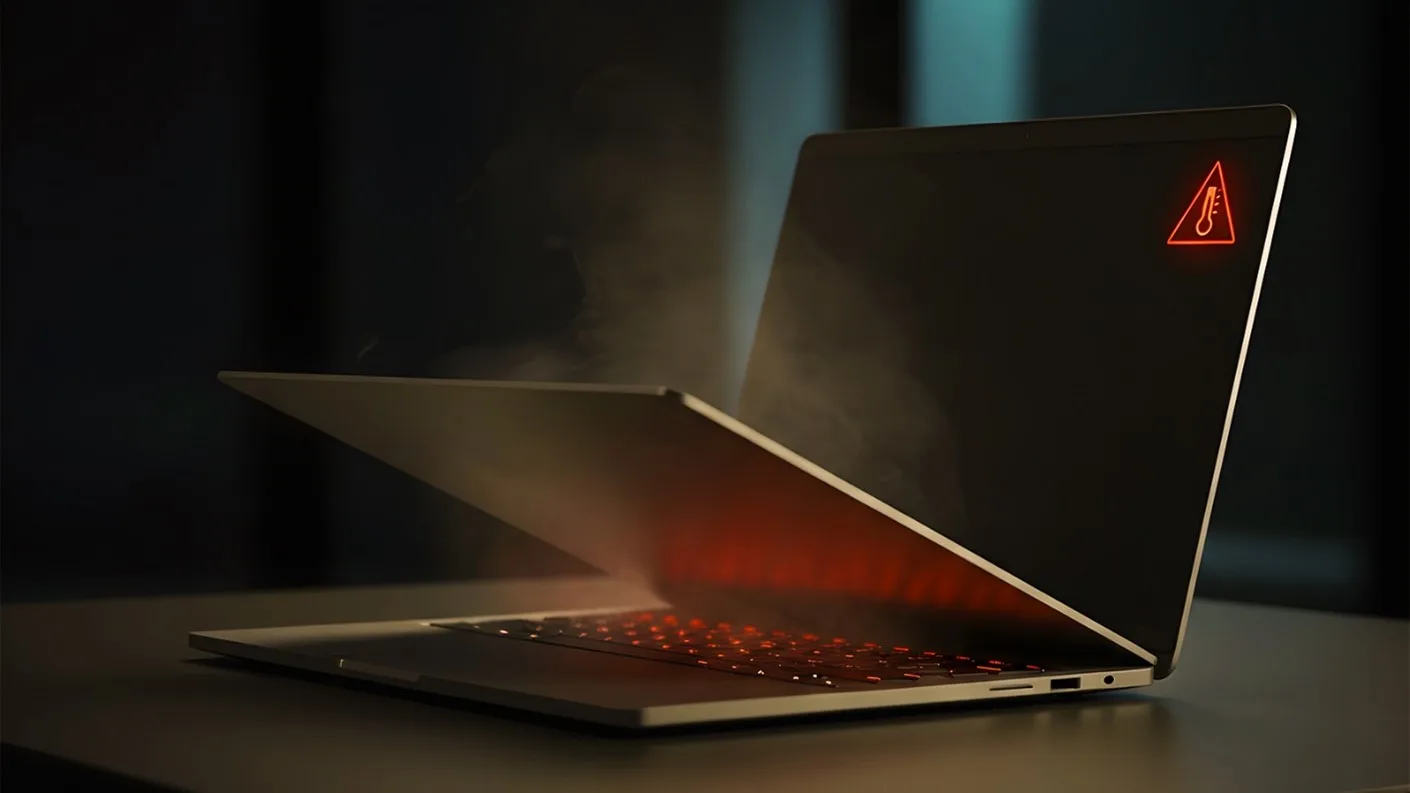
Dust accumulation is the single most common finding in laptops brought in for overheating, sluggish performance, or loud fan noise. The cooling system in a laptop draws air in from one side and exhausts it from another. Over time, the heatsink fins accumulate a compressed layer of lint and dust that progressively restricts airflow until the CPU has to throttle itself to stay within safe operating temperatures.
Throttling is a safety mechanism, not a fault — but the result for the user is noticeably worse performance during sustained tasks like video rendering, large file operations, or running multiple applications simultaneously. The machine is still functional, but it's no longer operating at its designed capability.
For desktops, the same principle applies but is generally less acute. Case fans and the CPU cooler accumulate dust at their own rate depending on the environment. A desktop in a carpeted room will typically require cleaning more frequently than one on a hard floor, simply because carpet acts as a reservoir for particulate matter that gets drawn into the case with every hour of operation.
How Often Should You Clean?
As a rough guideline: laptops in normal home or office use should be cleaned internally every 18 to 24 months. If the machine runs in a dusty environment, near pets, or is used for extended periods on soft surfaces, every 12 months is more appropriate. Desktops can generally go two to three years between internal cleans, though the cooling hardware should be visually inspected more often since access is usually far easier — just removing a side panel reveals the current state of things.
Thermal Paste and Why It Matters
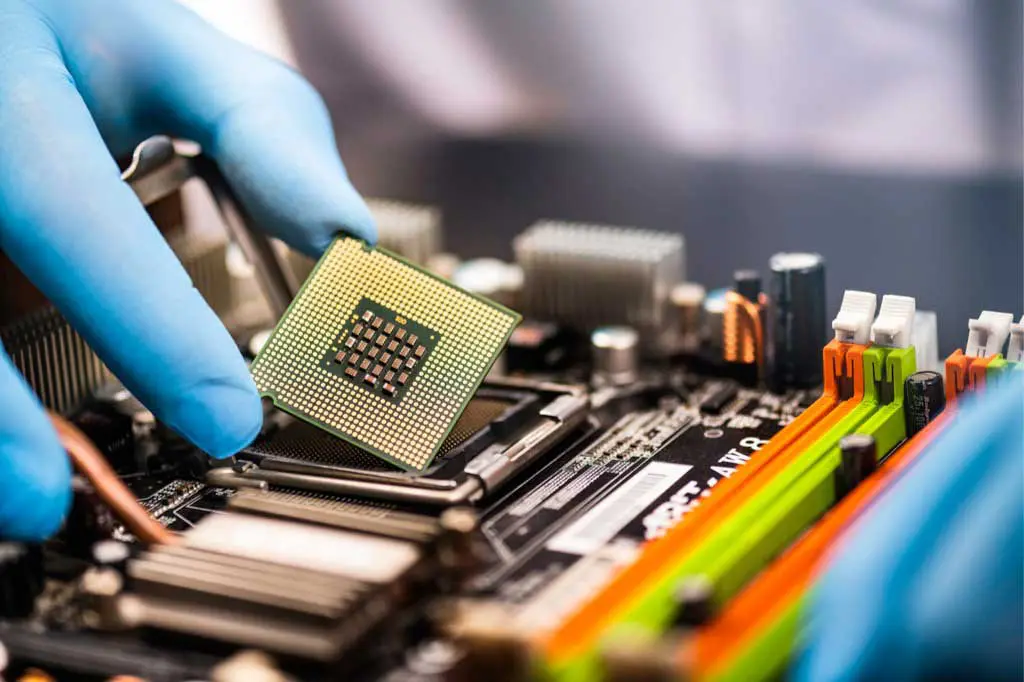
Thermal paste — the compound applied between the CPU and the heatsink — fills the microscopic gaps between two metal surfaces that look smooth but are actually slightly uneven at a microscopic level. Without it, air pockets would form in those gaps, and air conducts heat extremely poorly compared to a filled interface. The thermal paste is doing meaningful work every minute the machine is running.
The problem is that most thermal pastes degrade over time. They dry out, separate slightly, and their thermal conductivity drops. On a machine that's three or more years old and has been running regularly, the original factory thermal paste is probably no longer performing at its rated specification.
Replacing thermal paste on a laptop CPU that's been running hot typically reduces idle temperatures by 8 to 15 degrees Celsius in our day-to-day experience. That's a meaningful reduction — it translates into more headroom before throttling occurs, quieter fan operation, and less cumulative thermal stress on the surrounding components over the machine's remaining lifespan.
This isn't something that can be done without opening the machine, which on many modern laptops requires care and the right screwdrivers. But it's worth including in any internal cleaning service rather than treating it as a separate, optional task.
Storage Drive Health
S.M.A.R.T. — Self-Monitoring, Analysis and Reporting Technology — is a built-in health reporting system present in virtually all modern storage drives, both HDD and SSD. It tracks attributes including reallocated sector count, pending sectors, uncorrectable error count, temperature history, and total hours powered on. Several free tools can read this data, with CrystalDiskInfo being the most widely used option on Windows.
Checking S.M.A.R.T. data periodically — every few months is sufficient for most users — gives you early warning of a drive that's starting to develop problems. Reallocated sectors in particular are worth watching. A drive reallocates a sector when it detects a write error and can no longer rely on a specific area of the disk. A small number of reallocated sectors isn't necessarily urgent, but growth in that number over successive checks is a clear sign the drive is deteriorating.
Conventional HDDs are generally more vulnerable to mechanical failure from vibration and shock than SSDs, but SSDs have their own failure modes — particularly NAND write endurance under heavy sustained write workloads. Consumer-grade SSDs are rated for a finite number of total bytes written. For most users this limit is practically irrelevant for the drive's expected lifespan, but in specific use cases (database servers, continuous logging, frequent large file operations) it becomes a real consideration.
Physical Handling and Environmental Factors
Laptops are portable, which means they get moved around — and that creates risks desktop hardware doesn't face. The charging port is one of the most commonly damaged components we see, almost always from mechanical stress: a cable catching on something as someone walks past, or the laptop being lifted while connected at an awkward angle. USB-C charging has reduced this somewhat since the connector handles sideways stress slightly better than older barrel-type connectors, but any port will fail eventually under repeated abuse.
Conventional hard drives are vulnerable to shock while spinning. The read/write heads are positioned very close to the platter surface during operation, and a sharp impact — a dropped laptop, a desk being knocked — can cause the heads to contact the platter, which typically results in data corruption in the affected area and sometimes immediate drive failure. This is less of a concern with SSDs, which have no moving parts, but worth understanding for any machine still using a spinning drive for primary storage.
Temperature and humidity matter more than most people assume. Running a laptop inside a hot car on a summer day, or storing a machine in a cold damp environment and then powering it on immediately, both create thermal stress that accumulates. Condensation inside electronics is a more serious risk than it sounds — it doesn't necessarily cause immediate failure, but it creates conditions for corrosion on circuit board traces and connector contacts that can produce intermittent faults months or years later.
Cable and Connection Checks (Desktops)
In desktop builds, cables rarely need attention unless you're opening the case for other reasons — but it's worth checking that all connections are seated properly when the opportunity presents itself. Vibration from fans and drives can very gradually loosen connectors over years of operation, particularly the larger power connectors. A system that fails to boot intermittently, or that has USB ports that stop working occasionally, is sometimes traced to nothing more than a slightly unseated cable.
External peripherals with cable connections — monitors, external storage, keyboards — should have their cables checked before assuming the device itself is faulty when problems arise. A degraded USB cable is a common cause of intermittent connection issues that can look identical to a port fault or a driver problem.
What Maintenance Can and Cannot Prevent
Maintenance extends hardware lifespan and removes preventable failures from the equation — the fan that seized because of dust, the thermal shutdown that occurred because paste had dried out, the data loss that came from a drive showing warning signs for months. What it cannot do is prevent the natural aging of components. Capacitors have a rated lifespan. NAND flash cells wear with each write cycle. Mechanical drive bearings eventually develop wear regardless of how carefully the drive has been treated.
The practical implication is that well-maintained hardware typically reaches the end of its useful lifespan because it's genuinely obsolete or because a component has simply reached the end of its rated life — not because of an avoidable failure that happened years earlier. That's a meaningful difference in how long the machine remains usable and reliable.
If you're uncertain about the current state of your hardware — particularly an older machine that's been showing signs of trouble — a diagnostic check can give you a clearer picture of which components are in good shape, which are showing wear, and whether anything warrants attention before it becomes a more significant problem.